
A crimped RJ45 cable showing 100 MbPS instead of 1 GbPS (1000 MbPS) which is its rated throughput or even higher is almost always due to a faulty connection in the cable termination, where one or more of the eight wires are not making proper contact in the RJ45 jack you just crimped using a RJ45 crimpiming tool.
A Gigabit Ethernet (1000BASE-T) requires all four pairs (eight wires) to be active, whereas 10/100 Mbps Ethernet only requires two pairs (four wires).
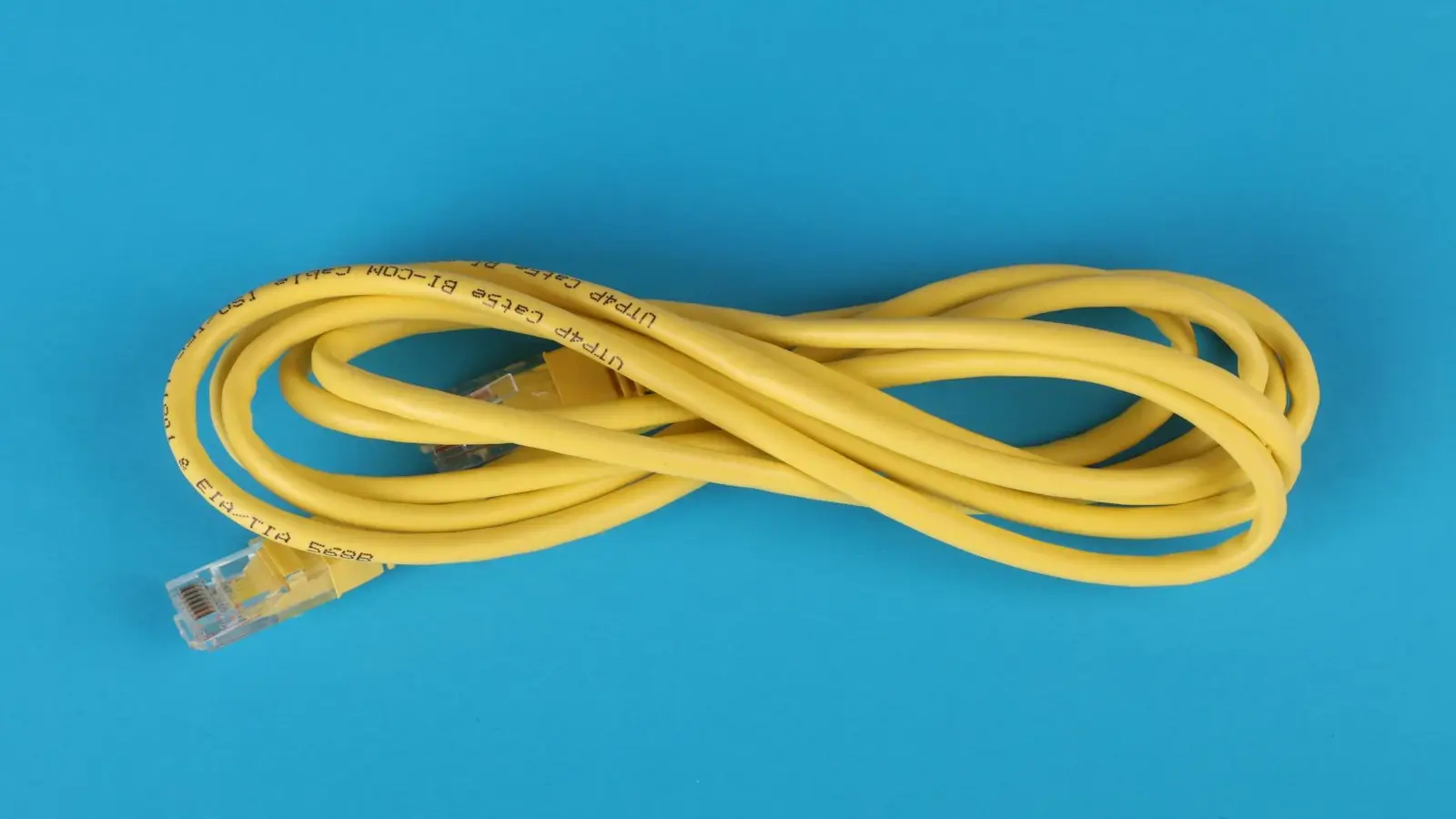
If one of the pins (specifically 3, 4, 5, or 6) is not properly crimped or making the contact with wire, the system will negotiate down to 100 Mbps (Fast Ethernet).
Common Causes for 10/100 Mbps Cap and Downgrade.
There could be multiple reasons why your ethernet connection is capped and downgraded at 10 or 100 Mbps speed being it Cat 5e, Cat6, or latest.
But here are most common ones:
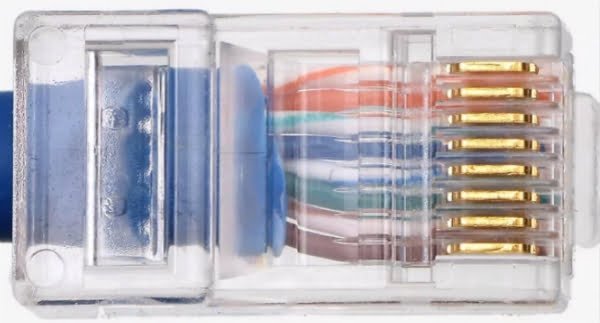
Poorly Crimped Connector: The most common cause. The copper wires may not be fully inserted to the end of the RJ45 plug, or the crimping tool did not push the metal pins down far enough. So one or more pins are not making contact.
Damaged Cable/Wires: A break in one of the eight wires inside the cable, often caused by tight bends or kinks.
Wrong Wiring Standard: Using ethernet wiring standard T568A on one end and T568B on the other (crossover cable) can cause issues, or simply failing to follow the correct T568B/T568A pattern for straight-through cables.
Note: When you join two different devices then use a straight-through cable and when two devices are same then you need a cross-through cable.
Using CCA (Copper Clad Aluminum) Cable: CCA cables are fragile and often fail to make a proper, lasting connection with the metal prongs in the RJ45 head. Thus, always prefer copper cables no matter how tight budget is.
Over-crimping: The crimping tool is worn out or used with excessive force, damaging the connector or breaking the wires.
How to Fix It?
Re-Crimp Both Ends: Cut off the existing RJ45 heads and crimp new ones. Ensure all eight wires are pushed all the way to the front and the outer jacket is firmly held by the connector’s clamp. Take a magnified look at the pins which are crimmped.
Check Wire Order: Verify that you are using the T568B (most common) or T568A standard on both ends. If using other standard then follow that.
Use a Cable Tester: Use a cheap RJ45 continuity tester to ensure all 8 wires are active and in the correct order. For daily crimping this is best tester tool.
Try a Premade Cable: To confirm the issue is the cable and not the device, replace the homemade cable with a known good, factory-made Cat5e or Cat6 cable. Premade ones are thoroughly tried and tested for longevity.
If the issue persists despite a good, tested cable, the issue might be the network card settings, which should be set to “Auto Negotiation” rather than forced 100 Mbps and “Full Duplex” instead of “Half Duplex” or anything else.

Leave a Reply