
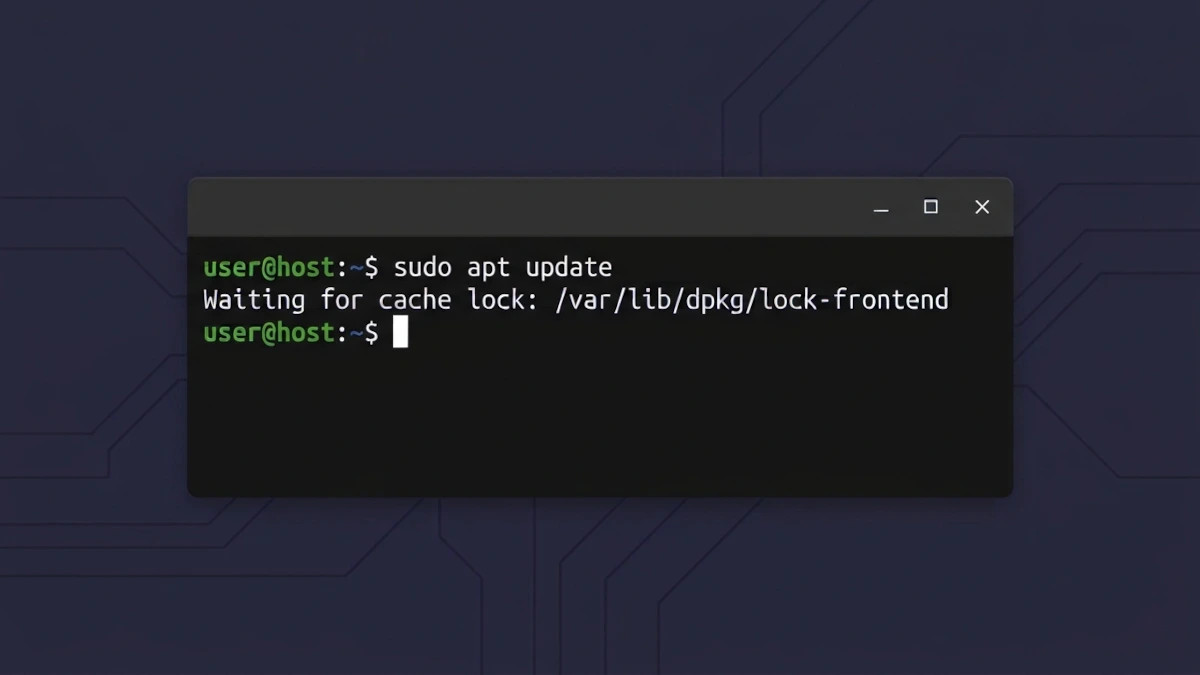
If you have ever tried running sudo apt update or installing software on Ubuntu, Debian, or Linux Mint, you might have seen your terminal pause with an error message like this:
Waiting for cache lock: Could not get lock /var/lib/dpkg/lock-frontend. It is held by process 1234 (packagekitd)Seeing a lock error can be frustrating when you just want to install a package quickly. However, this message is actually a built-in safety mechanism protecting your system.
Here is why it happens and how to fix it safely.
Why does this error happen?
On Debian and Debian-based linux distributions, tools like apt and dpkg manage software installations. If two or more programs (incl. software application) try to modify system packages at the exact same time, it can corrupt your package database. To prevent this, Linux uses lock files.
I hope this will help you understand why such error appears in middle of nowhere.
In this specific error:
/var/lib/dpkg/lock-frontendis the lock file preventing multiple package managers from running at once. If any one is running then another ones are locked.packagekitdis the background service that powers graphical software centers (like Software, Ubuntu Software, or GNOME Software) and checks for automatic system updates.
In short, your system is already checking for or applying updates in the background, and your terminal command is waiting in line for its turn.
Step 1: Wait a few minutes (safest method).
In most cases, you do not need to run any special commands to resolve this error.
- Give it 2 to 5 minutes: If you just booted up your computer,
packagekitdis likely refreshing your package lists in the background (it may take a few minutes depending on the update size). Once it finishes, your terminal will automatically grab the lock and continue your installation. - Close open GUI software tools: Make sure applications like Software, Software Updater, or Synaptic Package Manager are closed so they stop triggering background refreshes.
Note: If your network speed is too slow, like living in dial-up age, it may take even longer time.
Step 2: Stop the stuck process.
If your terminal stays stuck on the lock message for more than 5 to 10 minutes, the packagekitd background service may be frozen or hung. You can stop it manually using the Process ID (PID) shown in your error message (for example, 1466).
Note: Be sure to replace 1466 with the exact PID number shown in your own terminal output.
2.1. Check if the process is still active:
ps -p 14662.2. Stop the process gracefully:
sudo kill 14662.3. Force stop the process (only if Step 2 does not work):
If the process is still running after 15 seconds, force it to close:
sudo kill -9 1466Once stopped, packagekitd will release the lock file. Because it is managed by systemd, it will restart cleanly in the background if needed, allowing your apt command to proceed.
Step 3: Remove stale lock files (only if needed).
If you stopped the process and still see a lock error—or if you get a warning saying dpkg was interrupted—there may be a leftover lock file blocking your terminal.
Warning: Never delete lock files while an active update or installation is running in the background, as this can break your system packages.
3.1. Verify that no process is using the lock file:
sudo lsof /var/lib/dpkg/lock-frontend(Do not proceed to the next step unless this command returns completely empty.)
3.2. Delete the stale lock files:
sudo rm /var/lib/dpkg/lock-frontend
sudo rm /var/lib/dpkg/lock
3.3. Reconfigure any interrupted packages:
sudo dpkg --configure -a3.4. Test your package manager:
sudo apt updateSummary.
The Waiting for cache lock: Could not get lock /var/lib/dpkg/lock-frontend error simply means your system’s background updater (packagekitd) is currently busy. Waiting a couple of minutes usually solves the problem automatically, while stopping the process ID and running sudo dpkg --configure -a gives you a safe way to recover if the service gets stuck.
Frequently Asked Questions (FAQ).
What is packagekitd in Debian and Ubuntu? PackageKit (packagekitd) is a background system service that allows graphical software centers—like Software, Ubuntu Software, and GNOME Software—to check for, download, and install system updates automatically.
Is it safe to kill the packagekitd process? Yes, it is safe to stop packagekitd if it is stuck on a cache lock, especially if it is only refreshing package lists. Because systemd manages the service, it will automatically restart cleanly in the background when needed.
Should I delete /var/lib/dpkg/lock-frontend right away? No. Deleting lock files should always be your last resort. First, wait a few minutes or stop the process ID holding the lock. Only delete the lock file after verifying with sudo lsof /var/lib/dpkg/lock-frontend that no active installation is running.
