
An AppImage is a standalone package that contains everything an application needs to run on Debian linux. Unlike standard .deb packages, AppImages do not require installation or administrator (sudo) privileges. However, they will not open until you explicitly give them permission to run.
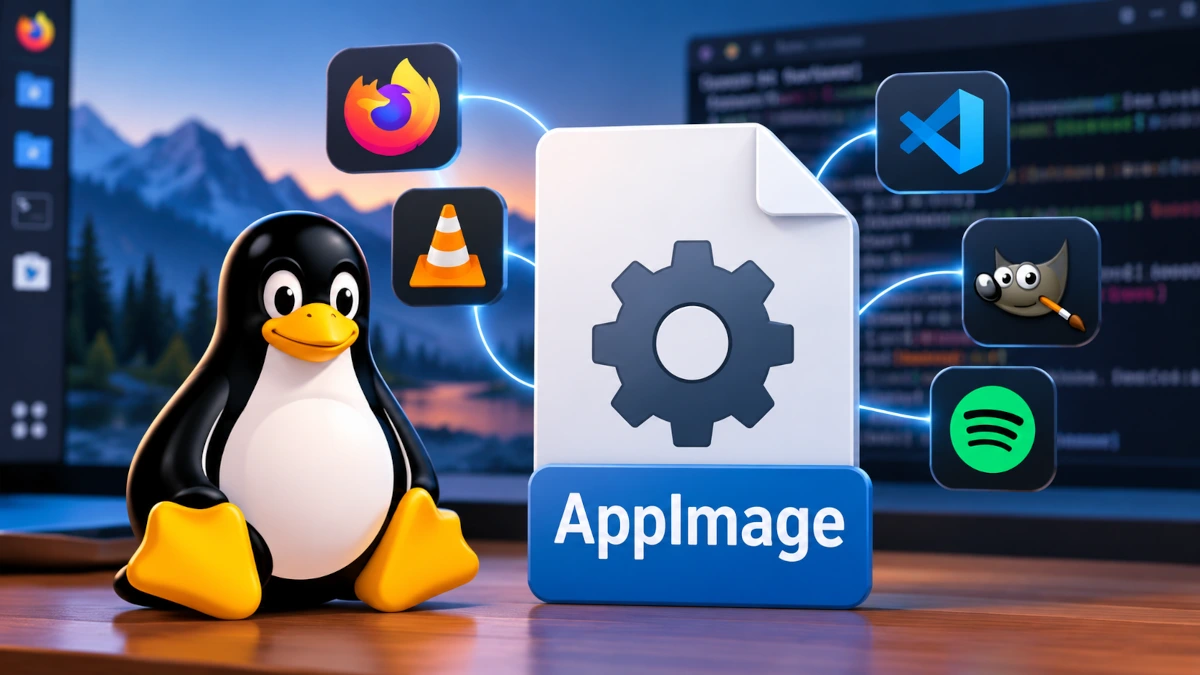
Here are the two simplest ways to open an AppImage on Debian linux (it will also work on any Debian-based distribution), using either the graphical interface or the command line.
Method 1: Using the Graphical User Interface (GUI).
This method works for Debian’s default GNOME desktop, as well as others like XFCE, KDE Plasma, and Cinnamon. All we need to do is give the executing permission.
- Locate the file: Open your File Manager and find your downloaded
.AppImagefile (usually in your Downloads folder). - Open Properties: Right-click the file and select Properties.
- Change Permissions:
- On GNOME/XFCE: Go to the Permissions tab and check the box that says Allow executing file as program.
- On KDE Plasma: Go to the Permissions tab and check Is executable.
- Launch the App: Close the properties window and open the AppImage file.
Method 2: Using the terminal (command line).
If the GUI method does not work or if you want to see error logs, you can use the Debian terminal.
- Open the Terminal: Press
Ctrl+Alt+T. - Navigate to the folder: Move to the folder where the file is stored (e.g., Downloads):
cd ~/DownloadsUse code with caution. - Make it executable: Grant execution permissions by running the
chmodcommand (replaceappnamewith your exact file name):bashchmod +x appname.AppImageUse code with caution. - Run the application: Launch it directly from the terminal:
./appname.AppImageor simply from GUI interface; it must launch, if not, then check for any fuse error which is common in minimal install.
Troubleshooting common issues.
Debian Linux focuses heavily on system stability and security, which means certain dependencies required by AppImages might be missing out of the box.
1. Fix the “FUSE” error.
If you double-click the file and nothing happens, or if the terminal gives an error stating either “dlopen(): error loading libfuse.so.2” or “dlopen failure trying to load libfuse.so.2”, you need to install the FUSE library first. Modern Debian linux releases do not include this by default.
Fix it by running this command in your terminal:
sudo apt update && sudo apt install libfuse2It will update the system once and install the fuse.
2. Nothing happens (sand boxing issue).
Some older AppImages rely on an outdated sand boxing technique that Debian linux disables for security reasons. If the application refuses to launch even after installing libfuse2, try running it from the terminal with the --no-sandbox flag:
./appname.AppImage --no-sandboxIf the app still fails to launch, comment down the name of the AppImage you are trying to run and copy-paste any error messages printed in your terminal.

Leave a Reply